Main Page
Welcome to Journalism 435 Web Design for Journalists! I'm excited to have you in the class. This will be the main site for our course and I'll keep this homepage updated with links to the latest resources throughout the semester. I'll also use our Canvas site to handle grades and send out the occasional email blast, but this page is what you should be checking regularly. We'll also keep in touch via the course Teams workspace.
The Latest
WordPress
We're wrapping up our look at how Web applications work by installing and exploring one that's useful for journalists: WordPress. We'll learn a bit about how to work with and modify WordPress, for its own sake, but also use it as an example of how Web applications work more generally, so that you'll be able to explore install and explore other useful tools on your own.
- Download page at WordPress.org (not to be confused with WordPress.com).
- A list of WordPress template tags.
- A "cheat sheet" guide to the files associated with a WordPress theme.
- The
enqueue_stylesfunction for WordPress child themes.
Server Technologies (and Web Forms)
- HTML Forms Reference Chart
- If you're interested in learning more about PHP, you can check out the PHP tutorials on W3Schools and the reference materials on PHP.net.
- If you'd like to know more about MySQL, there are tutorials for that, too. You can also learn more about the Structured Query Language independent of MySQL.
- You'll need to change some configuration settings in Cyberduck in order to ensure that any PHP files you create or upload run properly on the server. Here is a diagram showing where to go and what to change in Cyberduck's "Preferences" menu:

Putting Sites on the Web With FTP
Bootstrap and Responsive Design
- Here's the Bootstrap website.
- For those interested, here's a guide to creating flexbox layouts in CSS. We'll be using Bootstrap to accomplish this, though, so you don't need to learn to do it from scratch.
- Here's a PDF of the guide to Bootstrap column layouts I showed in class.
JavaScript and jQuery
We're learning some basic JavaScript and looking at jQuery and its plugin ecosystem as an example of a code library, which will help us to understand other (more up to date) code libraries and frameworks, like Bootstrap.
Some common event handlers in JavaScript. These also work in jQuery if you just eliminate the "on" at the beginning (e.g., "onclick" becomes "click" in jQuery):
- onmouseover
- onmouseout
- onclick
- onkeypress
- onload
If you want to actually learn to program in JavaScript, Codecademy is a good free resource for beginners.
We use jQuery as an example of a JavaScript library because it has a low barrier to entry, but there are more contemporary ones you may want to look at if you're delving further into JavaScript. Here are a few:
These are more often referred to as "frameworks" than "libraries." That's because, with the exception of Stimulus, rather than adding one of these to an existing website, you more often build your website to their specifications in order to take advantage of the perks they provide. (Hence the higher learning curve when compared to something like jQuery.)
Some jQuery Resources
- jQuery.com is where you can download a copy of the jQuery library (JavaScript file) and discover more jQuery methods.
- Google Hosted Libraries is where you can find the link to Google-hosted copies of jQuery and related libraries like jQuery UI.
- jQueryUI.com is where you can find out more about jQuery UI features (shown in the tutorial video) and download a copy of the jQuery UI libary.
Plugins shown in class:
Resources for finding more jQuery plugins:
- The plugin directory on jQuery.com has more, though it's out of date.
- The npm website also has lots of jQuery plugins listed.
- Searching Google works a surprising amount of the time (e.g., try searching
jQuery image gallery plugin)
A Rough Checklist for Getting Started With a jQuery Plugin (or jQuery UI)
- Make sure your HTML document contains a link to the jQuery library JavaScript file.
- Make sure your HTML document contains a link to the jQuery plugin or jQuery UI file(s). If you're adding a jQuery plugin to an existing site, you will have to copy these plugin files into the folder(s) containing your site files and make sure to provide the correct relative URLs to them in your webpages. Plugin files can include:
- A JavaScript file (always)
- A CSS file (often)
- Other supporting files (e.g., images, audio files, etc) (sometimes)
- Now you're ready to write your own jQuery code that makes use of the plugin. Remember:
- Make sure to place it inside the [[Resources#jQuery_Document_Ready_Function|"Document Ready"]] function.
- Using a jQuery plugin typically involves selecting a tag in your jQuery code and adding whatever new method (e.g.,
raptorize()that the plugin has provided you with. For example:
$("h1").raptorize();or
$("#slider").anythingSlider();- In your HTML, make sure the tag(s) to be selected are what the plugin is expecting. For example, if the plugin only knows how to work with unordered lists, make sure the tag you're selecting is in fact a
ultag and that its contents are formatted in the way the plugin is anticipating. - Finally, remember that you can find help by looking at the plugin documentation, which is typically included in one or more of the following three places:
- The website you got the plugin from.
- Example files contained in the plugin download.
- Other files in the plugin download with helpful names like README or INSTALL.
CSS Positioning and Layout
We're learning how to move objects around our pages using CSS's position property, as well as the CSS grid system.
If you're interested in a deeper dive into CSS grid, here's an excellent resource for that.
HTML5
We're learning about what's new and interesting in HTML5 and beginning our look at positioning in CSS.
A list of the new semantic elements in HTML5.
Intro to CSS and the Document Object Model
We're putting together what we've learned about CSS and the Document Object Model to style a complete webpage.
- CSS Terms Defined Handout
- CSS References: Mozilla CSS Properties Reference | W3Schools CSS Reference
- Color Resources: HTML Color Name Reference Chart | Colour Lovers | Adobe Color
- Digital Color Meter alternatives for Windows users.
- A List of Web-Safe Fonts
- Fonts and Typography CSS Handout
- Smashing Magazine's Guide to Advanced CSS Selectors
- Emmet Cheat Sheet (handy auto-completions based on CSS selectors)
- Google Fonts
- Resources for learning more about variable fonts and how to tinker with them using CSS.
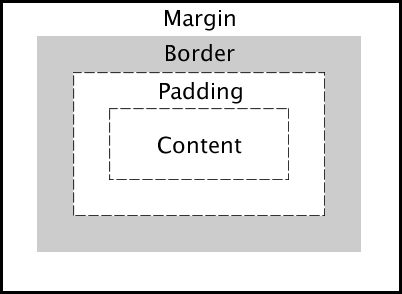
- CSS Box Model Diagram (credit: U Washington):
Intro to HTML
We're getting underway! We'll start by looking at HTML and learning how to write links between files. Please make sure to download and install Pulsar, the text editor we'll be using throughout the term. You should also log into Teams at the beginning of each class, as I'll be using it to share files with you.
Some helpful links for materials that are coming up:
- Here's a link to the HTML validator tool. You can also find a link to it any time this semester in the "Useful Links" section below.
- HTML entities reference.
- Some handy keyboard shortcuts for Pulsar.
Useful Links
- Lecture Recordings // Class lectures are recorded and will be viewable here (sign-in required).
- Resources // HTML skeletons and other code snippets we'll reuse repeatedly this semester.
- W3C HTML Validator // Validate your HTML markup.
- W3C CSS Validator // Look for errors in your CSS.
- Hastebin or PrivateBin // Share your code if you have questions about it.
- Lipsum.com // A lorem ipsum generator that will produce dummy text you can use as a placeholder if you're trying to style a page for which you haven't yet penned/received the written content.